Overview
Active Insight Monitoring (AIM) Alert conditions allow you to set up automatic alerts and notifications based on specific parameters. Create rules that specify the conditions under which an alert should be triggered. These rules can be based on a wide range of criteria, such as:
- When a specific response or value is entered
- When a certain pattern of responses occurs
- When a field is left blank
- When a date or time condition is met
- And more!
How to Create AIM Conditions
- In the Portal, go to the New Alert window.
- Data & Analytics > Trend Alerts (AIM) > New Alert
- Select Create New Condition.
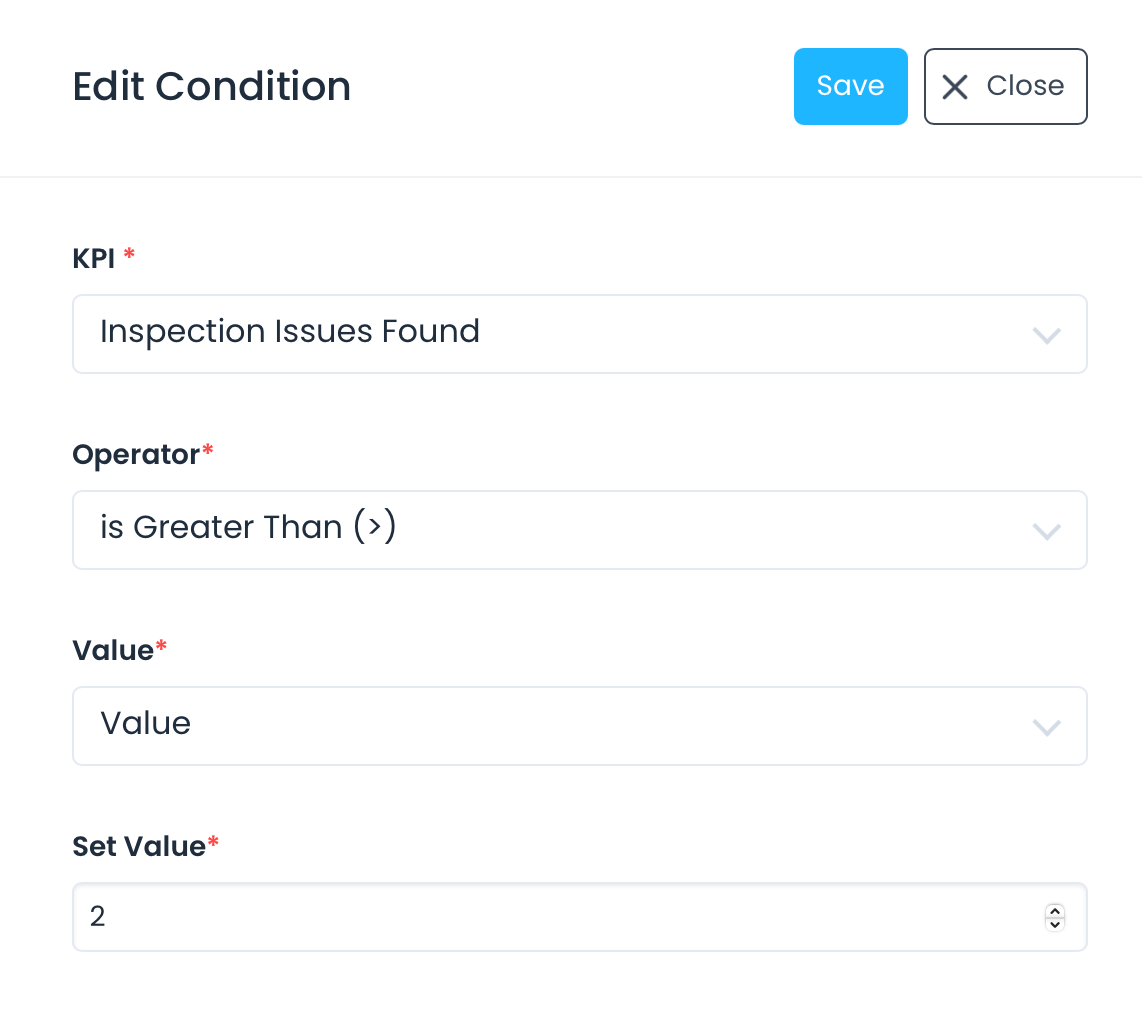
- Select your KPI or build a new KPI
- In our example below, we chose our Inspection Issues Found KPI.
- Select the operator in which the KPI is governed.
- Choose between the following operations: is equal to, is greater than, is lesser than, is lesser than (%).
- Set a value that will trigger the condition.
- In the example below, our condition will fire when more than 2 inspection issues are found.
Adding More Than One Condition
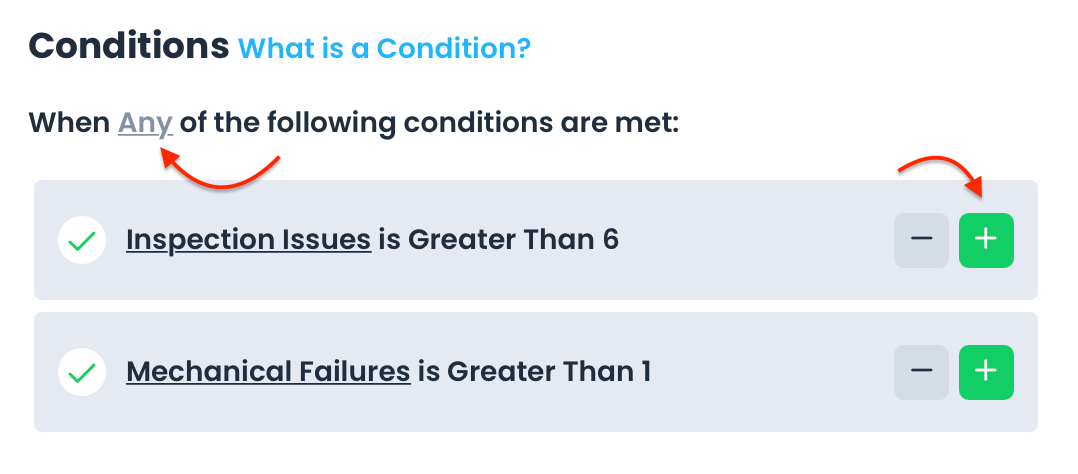
Click on the green + icon to add multiple conditions to your alert. Additionally, toggle between which conditions must be met. You can choose between having any of the multiple conditions trigger the alert or all of them.