Create a New Alert
To create an AIM Alert, locate the Aim Alerts tab in the portal. From here, you can create a multitude of variety of alerts based upon your predefined KPIs. You will need to have made at least 1 KPI to create a new alert.
1. Click the "New Alert" button in the top right
2. Name your Alert

3. Create your conditions
Click on the grey box to add the condition or conditions that will trigger your alert.

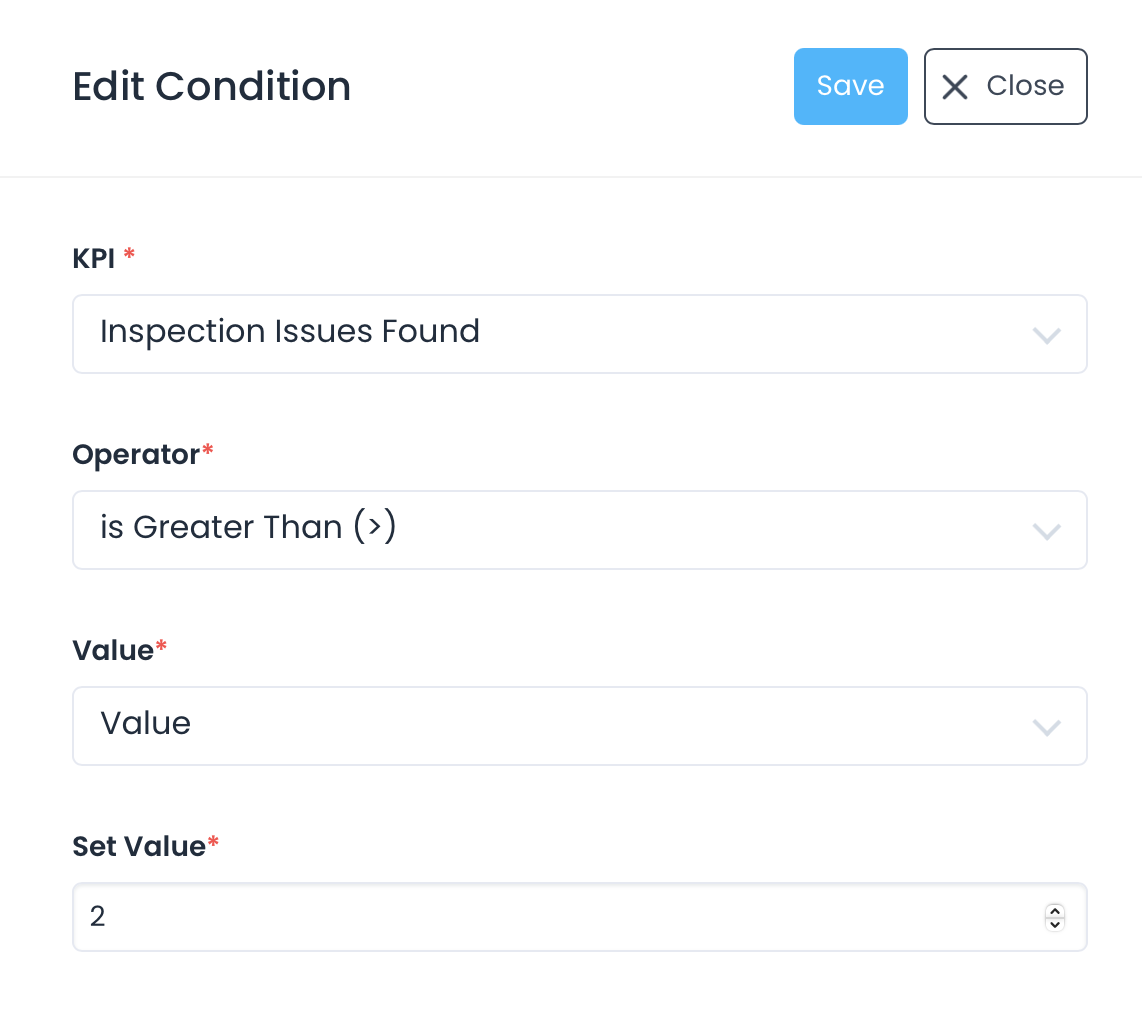
In this example, the "Inspection Issues Found" KPI has been selected. Next, the operator in which the KPI is governed is selected. Choose between the following operations: is equal to, is greater than, is lesser than, is lesser than (%). This condition will fire when more than 2 inspection issues are found.
Adding More Than One Condition
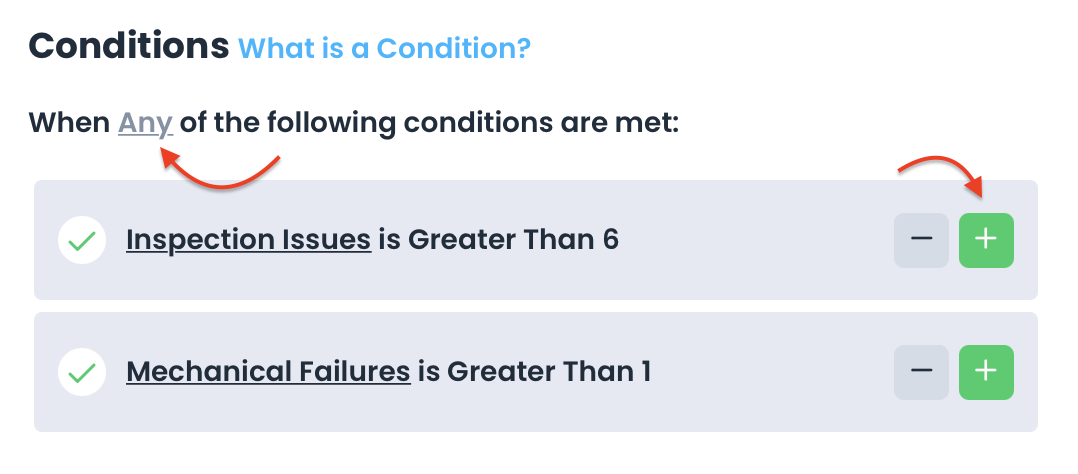
Click on the green plus icon to add multiple conditions to your alert. Additionally, toggle between which the conditions are met. You can choose between having Any of the multiple conditions trigger the alert or All of them.

3. Set Your Alert Schedule (Optional)
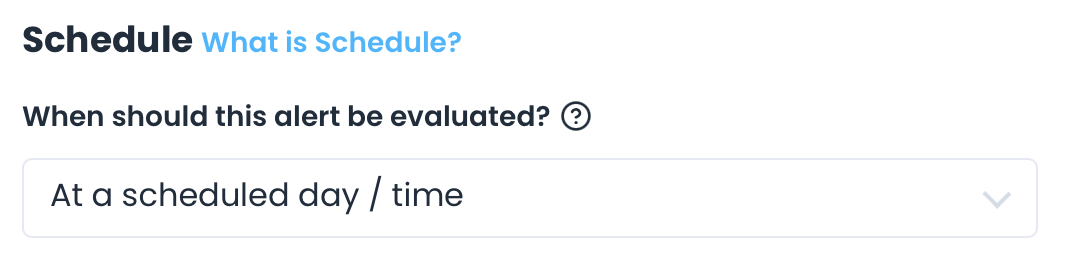
When your alert has been triggered by your conditional rules below, set a specific time/date when you would like your alert to be set. Once you toggle the switch, the Alert Schedule will appear. The Alert Schedule gives you the option to be notified by the minute, hour, day, week, month, and chron to run periodically at customized fixed times, dates, or intervals.
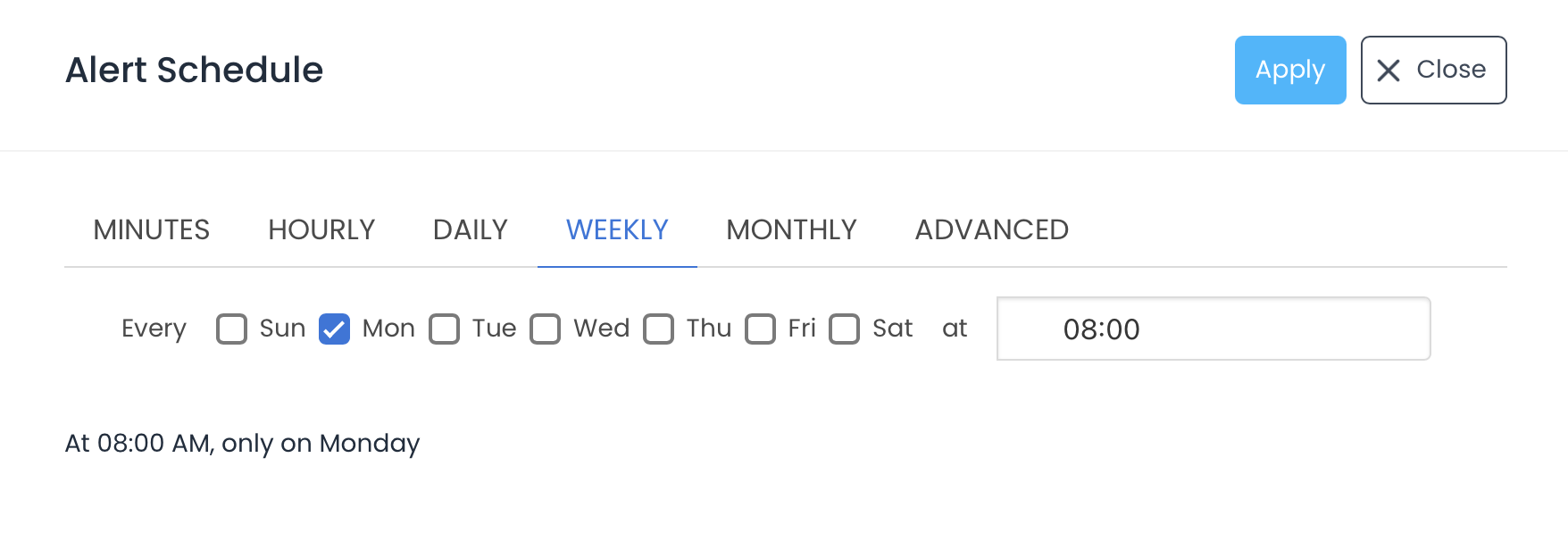
Once you have selected your Alert Schedule it will be posted like this:

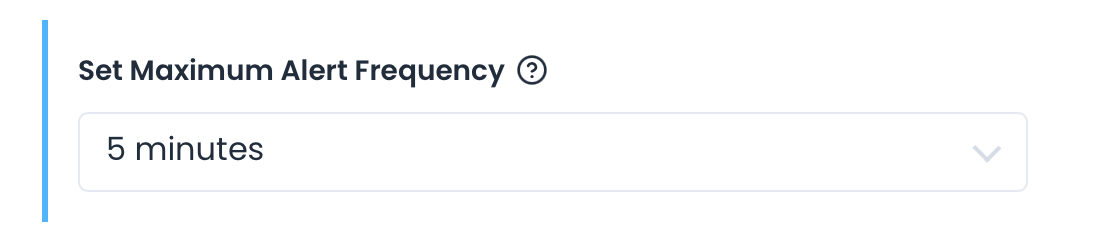
4. Set your alert frequency (Optional)
When your alert has been triggered by your conditions or rules below, your alert will fire immediately. You can set the frequency at which more alerts will be sent if you receive submissions that continue to trigger your rulesets.
5. Choose your alerts
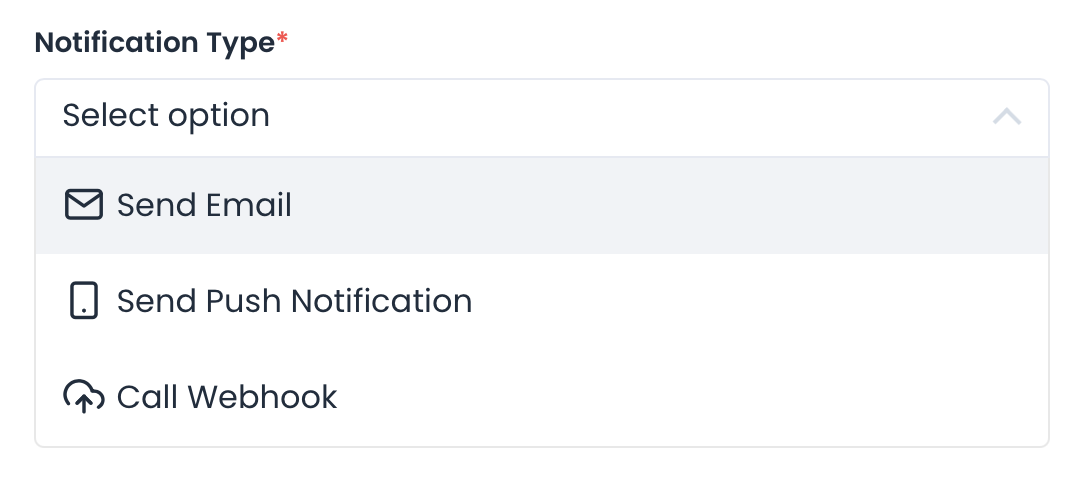
Aim offers three alerts that can be activated simultaneously or individually. Push notification , Email and Webhook.