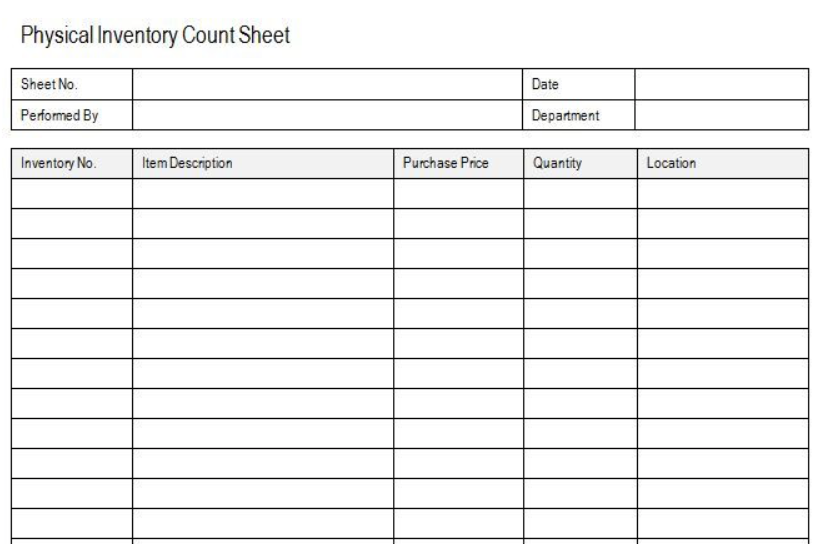
Subforms allow for a straightforward capturing of recurring instances of the same data type. An example of this would be recording an inventory of items with line items. In this scenario, you would create a reusable subform representing a line item input. Let's look at this physical inventory sheet as an example.
Turning a Table Into a Subform
Not entirely all of this table would be included in the subform. Think of the top section as a static section and the item inventory table as a dynamic set of fields.

These top four fields would be easily translated into numeric, date/time, text, or option list fields and would not be included in the subform but would be included in the main form.
Example:
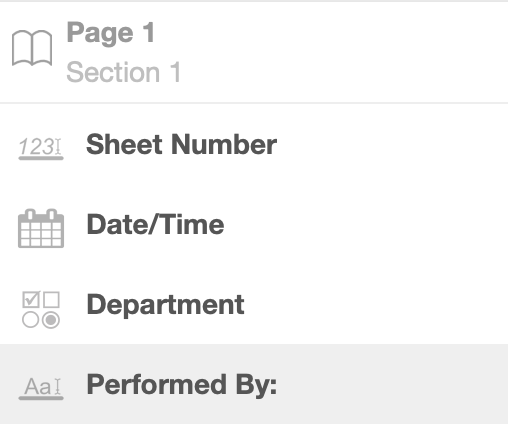
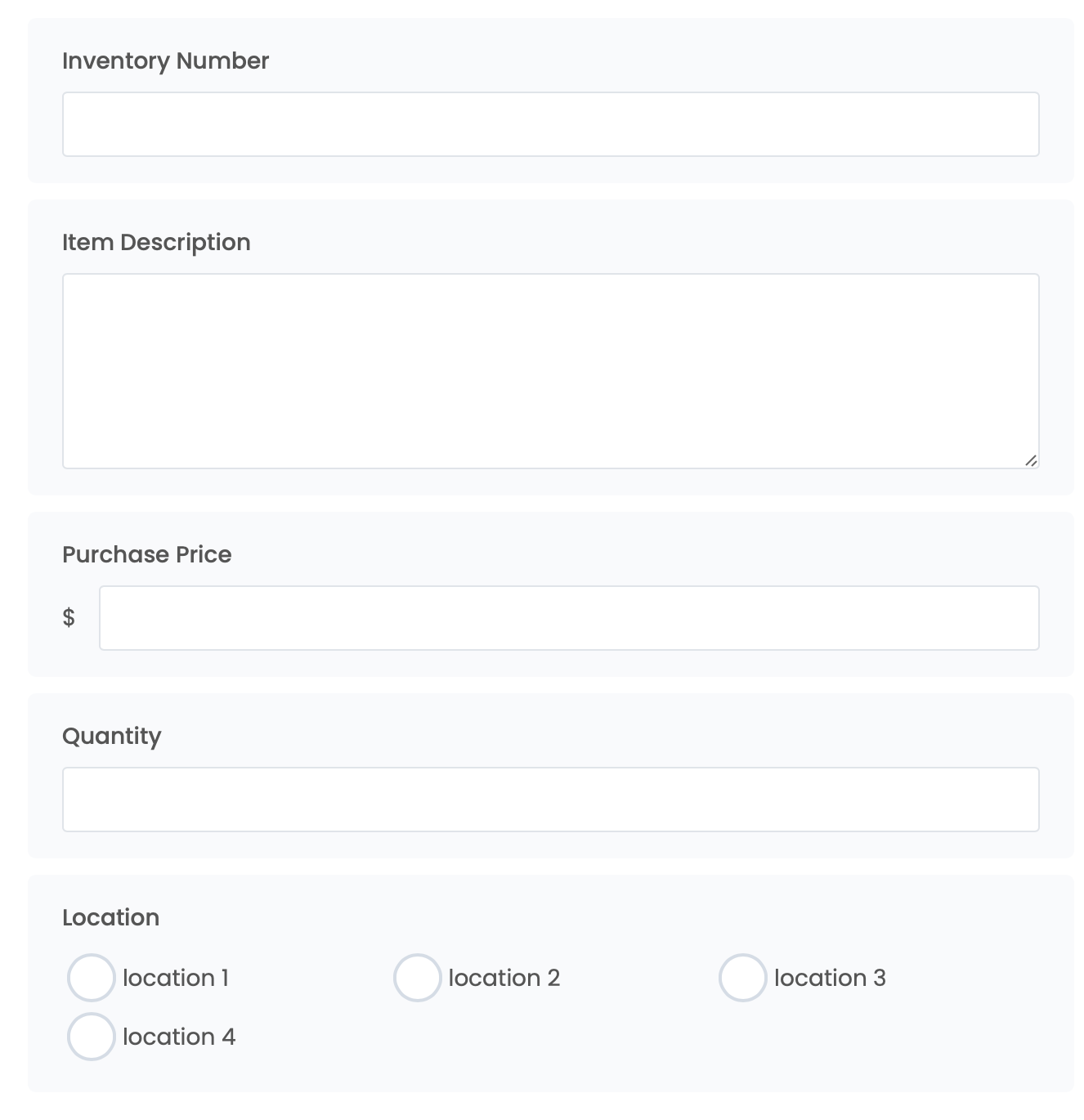
The part of the table that would be included in the subform would be the Inventory number, item description, purchase price, quantity and location.

Your subform should look similar to the example below:
Adding the Subform to Your Main Form
- Log into the Portal using your username and password.
- Open your form, and add the Subform field type.
- On the right-side panel, select the subform you have created.
- Select Allow Multiple Subform Instances; this will allow you to repeat inputs in the table.
- From this point, you can configure the subform field as needed. Please read our article Creating and Using Subforms for more details.
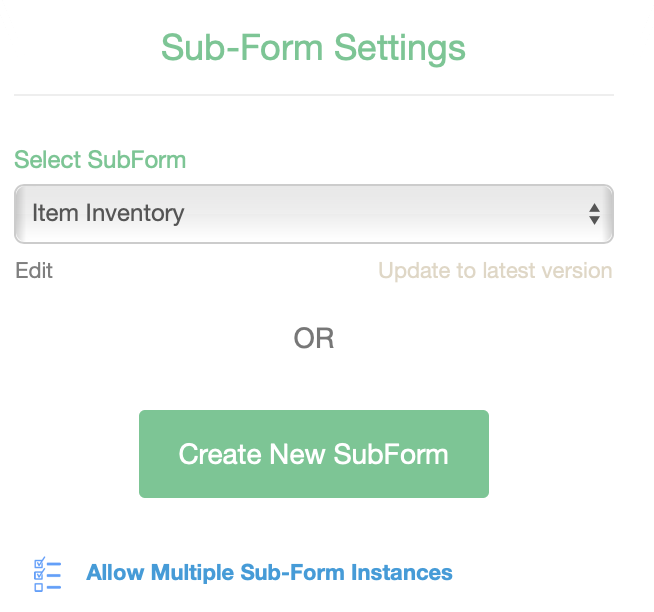
Using the form in practical practice, "Allow Multiple Subform Instances" must be turned on to use the form as an item inventory log effectively. Complete the item inventory subform as many times until the task is complete and then submit. Your instances will be queued as shown until you are finished.

Click submit when you have finished your subform instances.