Using a service like Zapier can offer a quick and efficient way to integrate FastField with other 3rd party software services/platforms. This article describes how to set up a Zap to "trigger" a form dispatch in FastField from Google Sheets.
Step 1 - Setup Your Google Sheets Trigger:
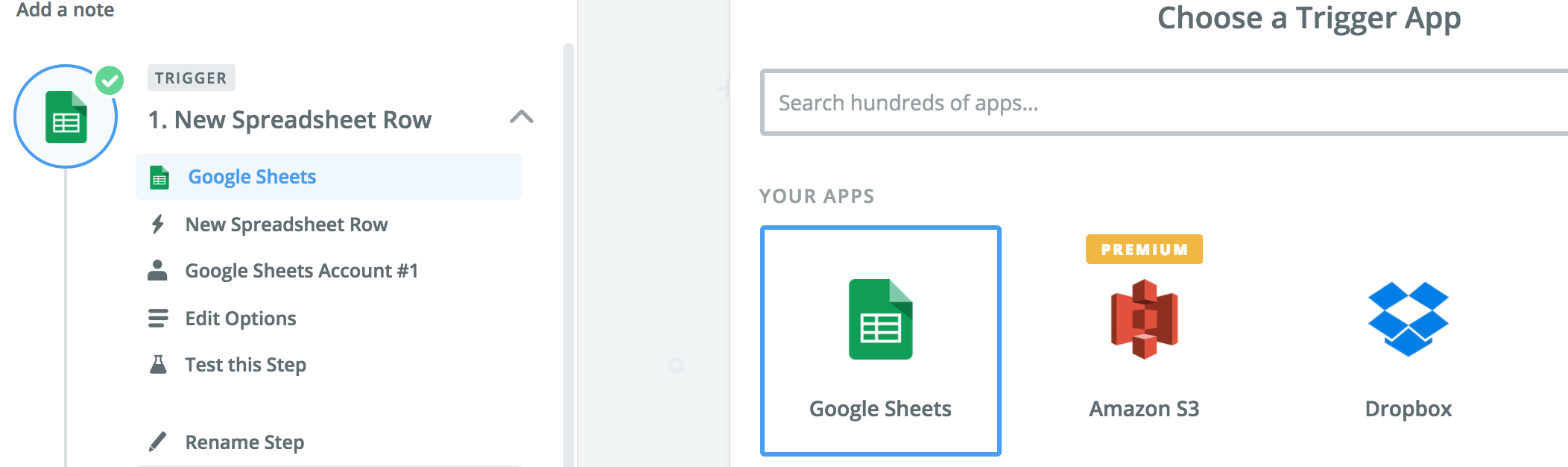
Once you have started your New Zap, add Google Sheets as the triggering system:
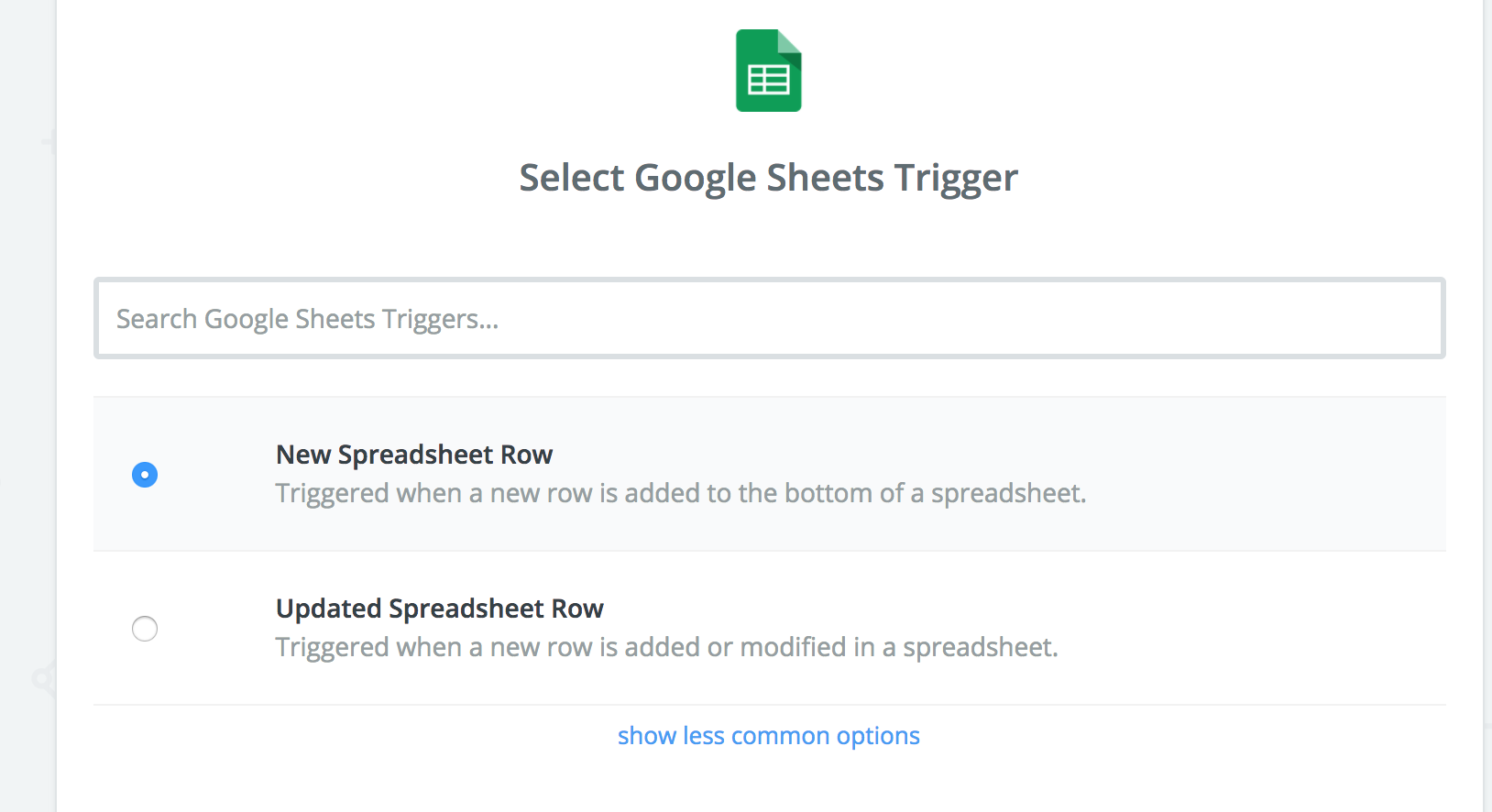
Choose "Triggered when a new row is added to the bottom of a spreadsheet." as your trigger action and click Continue:
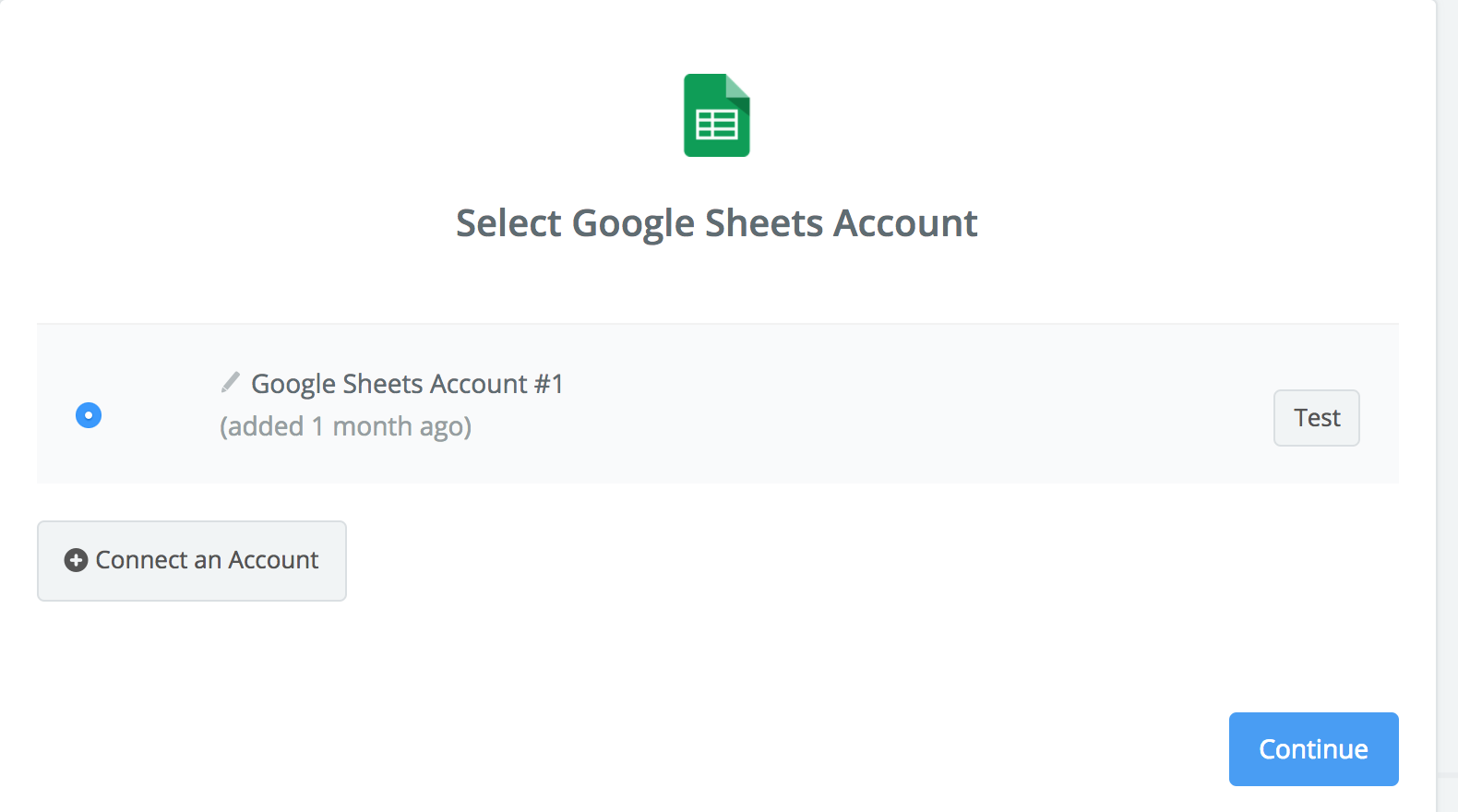
Zapier will then ask you to connect to your Google account to gain access to a list of Google Sheets in your account:
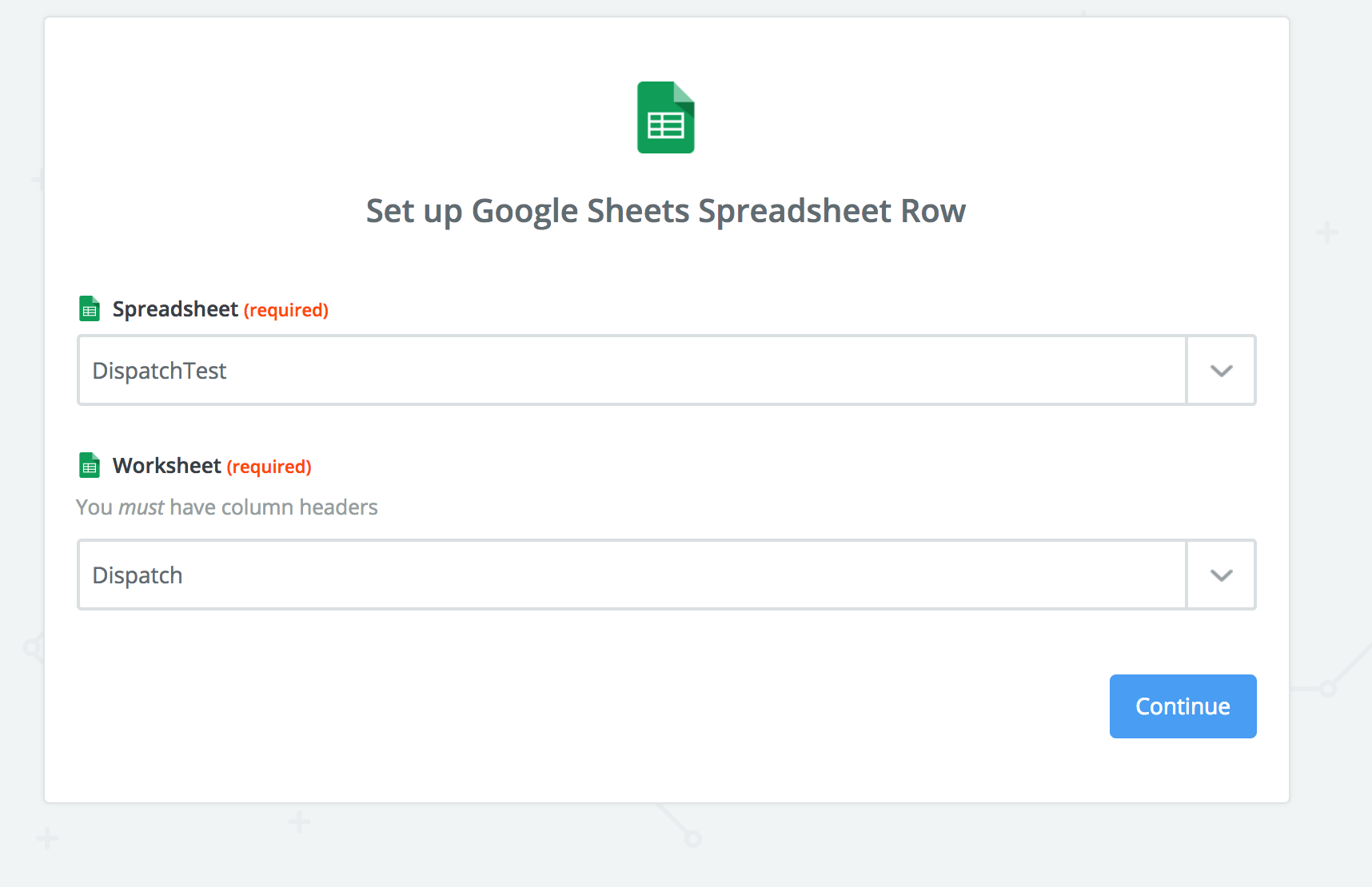
Click Continue to specify the spreadsheet and the worksheet that will be used to send the dispatch requests:
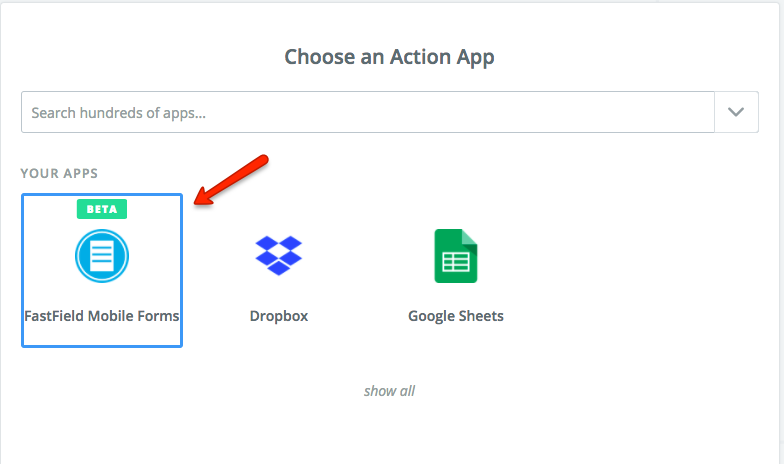
Step 2 - Add Fastfield as the Action App
Step 3 - Choose "Create Form Dispatch" as the Action
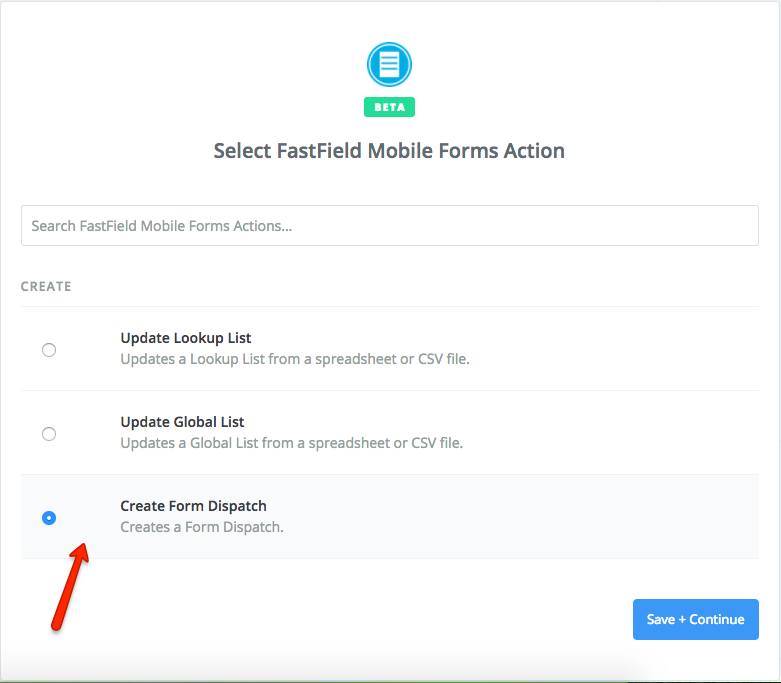
Save and continue.
Step 4 - Link your Fastfield Account
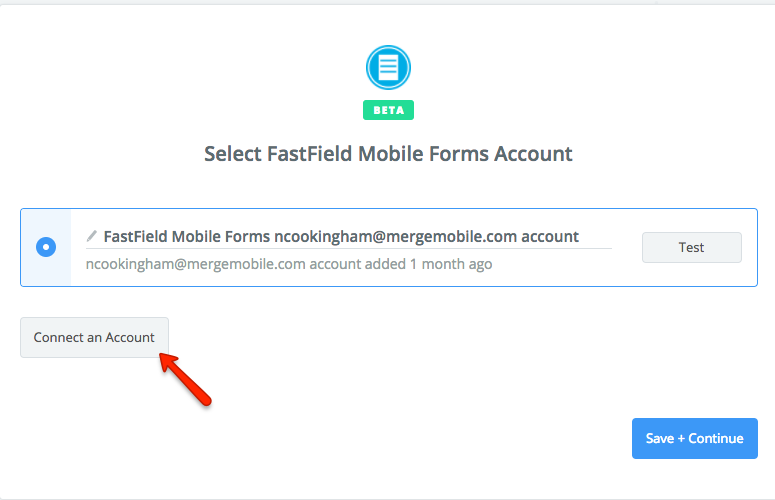
Be sure to test the connection before hitting save and continue.
Step 5 - Choose Form and Edit template.
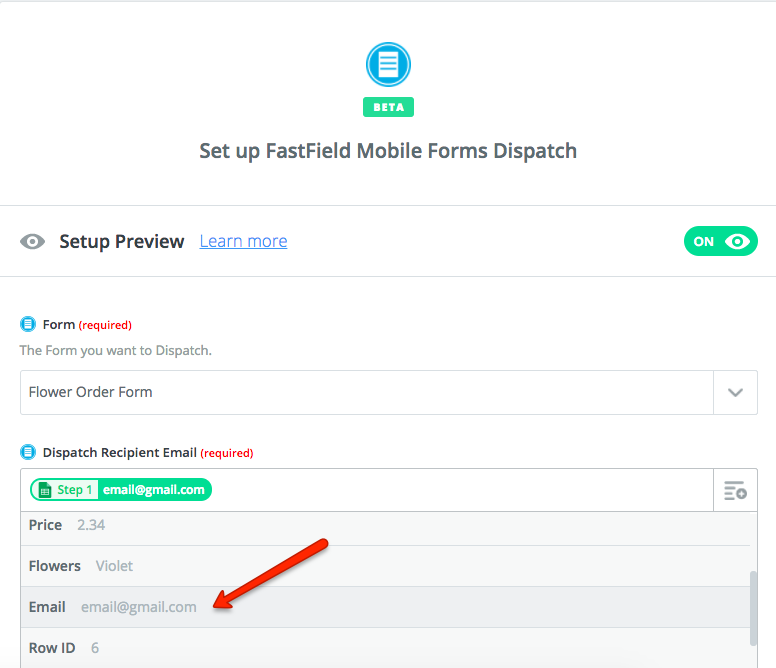
You will need to choose which form you wish to dispatch to at the top of the page.
Below that is another required field that asks you to enter the email address of the user you wish to dispatch to.
If you have the user emails listed on your google sheet (recommended), you can use that column here, as seen in the above image.
Next, you have many option fields to fill out in your dispatches, such as Project Names, due dates, and addresses. Again if you have these details in your google sheet, you can link them up.
Step 6 - Populate Form Fields
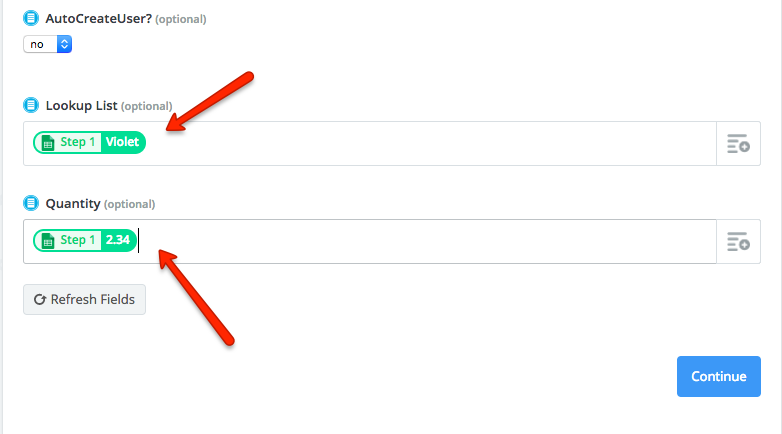
Once you scroll down past "AutoCreateUser?" (which will automatically create a new user in your account if it cannot find the dispatch email address in your account is turned on) You will see fields from your form which you can pre-populate with data.
Again, you can pull this data from your google sheet by clicking on the "Add" button on the right and choosing a column.
Step 7 - Send Test to Fastfield
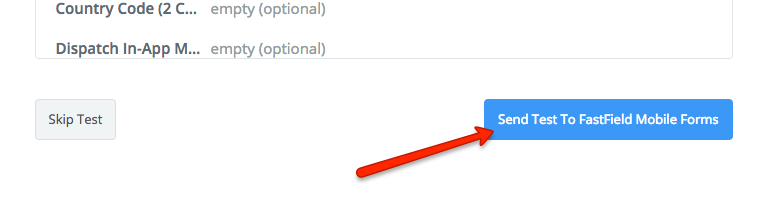
Once you have finished editing your template, send a test to Fastfield and check to ensure that the dispatch comes through.
Step 8 - Name Your Zap and Turn It On
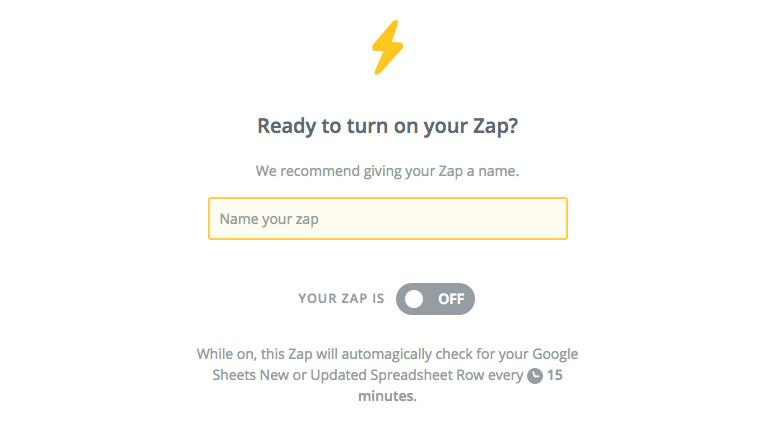
Once you turn your Zap on, Zapier will check every 15mins to see if a new row has been added. Each time a new row is added to your spreadsheet, a new dispatch will be created.