Overview
FastField allows you to create a list that is filtered based on who is currently logged into the app. This is useful if you want certain users to only see certain items in a list.
For example, let's say you have an inspection form that includes a list of sites to inspect. If you have multiple inspectors who will be using that same form, you can limit the sites that are shown in the list for each inspector. This way, each inspector will only see sites on the list that are relevant to their job.
How to Filter a List Based on the User
To do this, you will need to add a Current User Variable to a list option in your form. Here's how:
With the List field:
- Add a List field to your form in the Form Builder.
- Select Add List Items from the right settings menu and create your list.
- Select Advanced.
- In the Filter Key box, enter the email of the user(s) who you want to be able to view each item on the list (e.g., josh@example.com).
- Select Field Filter Key from the List settings menu.
- Enter CURRENT_USER_VAR as the field key and select OK.
Example
Let's say we have three different inspectors, Josh, Andrew, and Adam, who will be filling out a form. Depending on which inspector is logged in to use the form, they will be limited to which items they can see on the list.
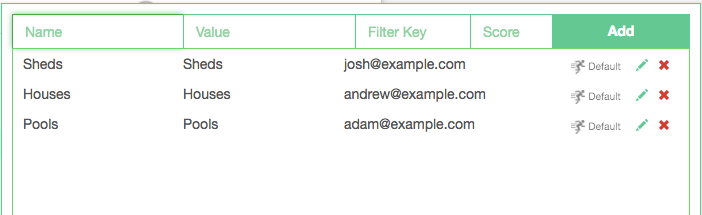
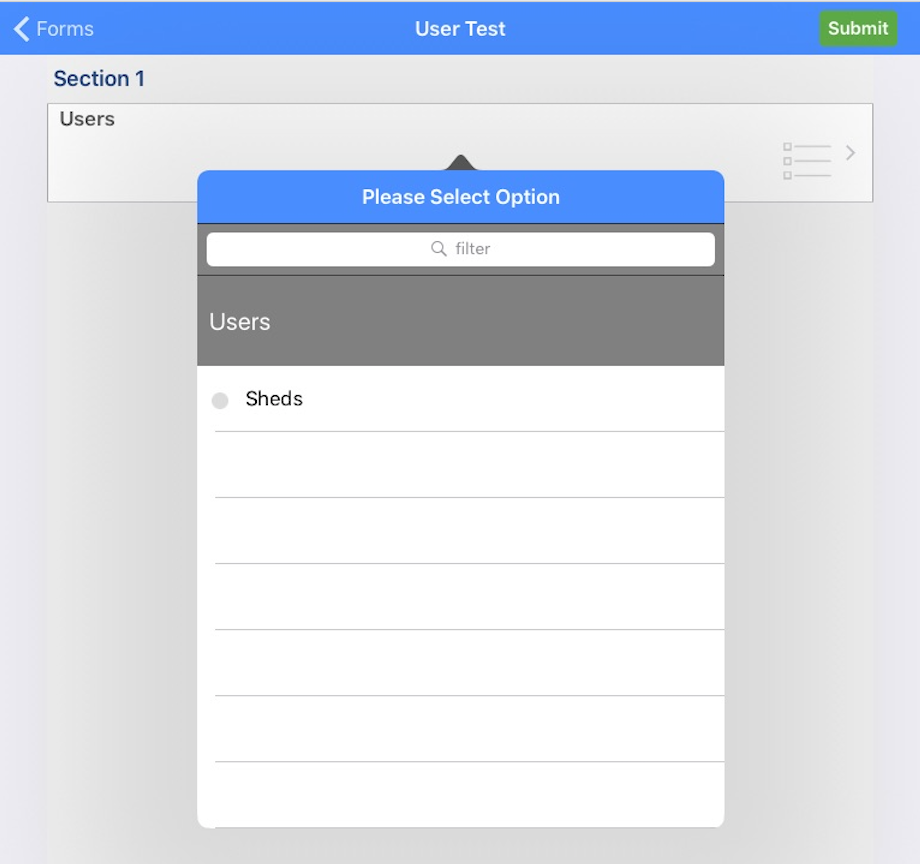
Once we publish our form, only the user that opens the form on their device will be available for selection on this list. So now, when Josh is logged in to complete the form, he can only see the Sheds option.