Overview
Container styles are helpful to customize the display of field data (e.g., size, border style, padding) in your PDF report. It can also aid in adjusting container display parameters globally across multiple fields in a lengthy report. That's because when a field container style is adjusted, these changes are reflected in all fields with the applied style.
For example, you can select a field of text that you've added to your report. Let's say you then center it, apply a border around it, and give the cell a gray fill color. You can save this cell formatting under a unique name (e.g., Format 1) and apply it to other fields within your report. Any changes you make to one field will apply to all other fields using this format instantly.
How to Save Container Styles
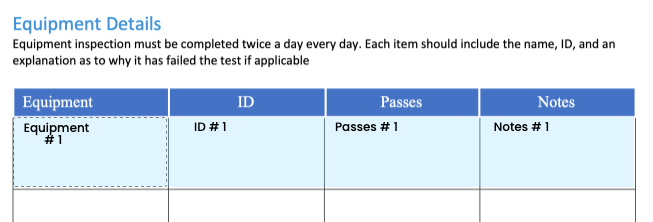
When you add fields to your PDF in the Report Builder, the text will appear in the default style shown below:
To view and change the default style:
- Select the field on your report.
- In the Field Settings menu on the left, scroll down to the Cell Formatting section.
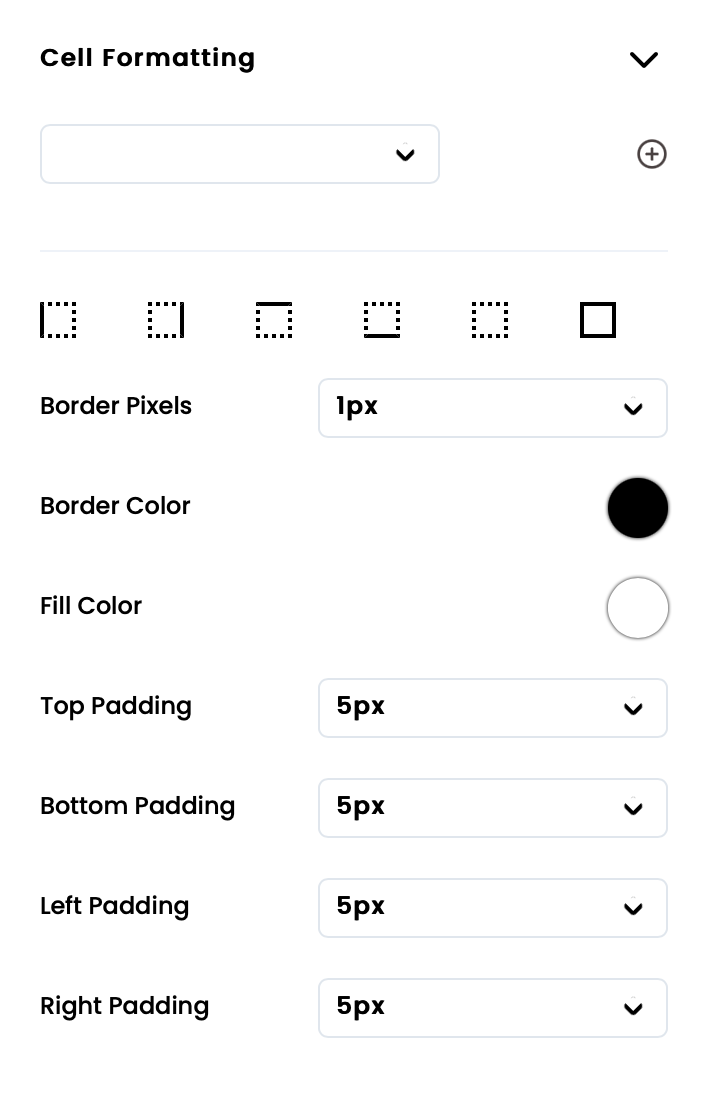
- Here, you can adjust and style the displayed field data outside of the default setting.
- Select Save Container Style and give it a name.
- Now, you can apply this saved container style to other fields.
Any changes you make to one field will now apply to all other fields with the same container style simultaneously.
Example
In the example below, we want to change the first column of data in our Equipment Details table to center the text.
- First, we need to access the Field Formatting menu and center the text.
- Now our text in the table is centered in the bounding box.
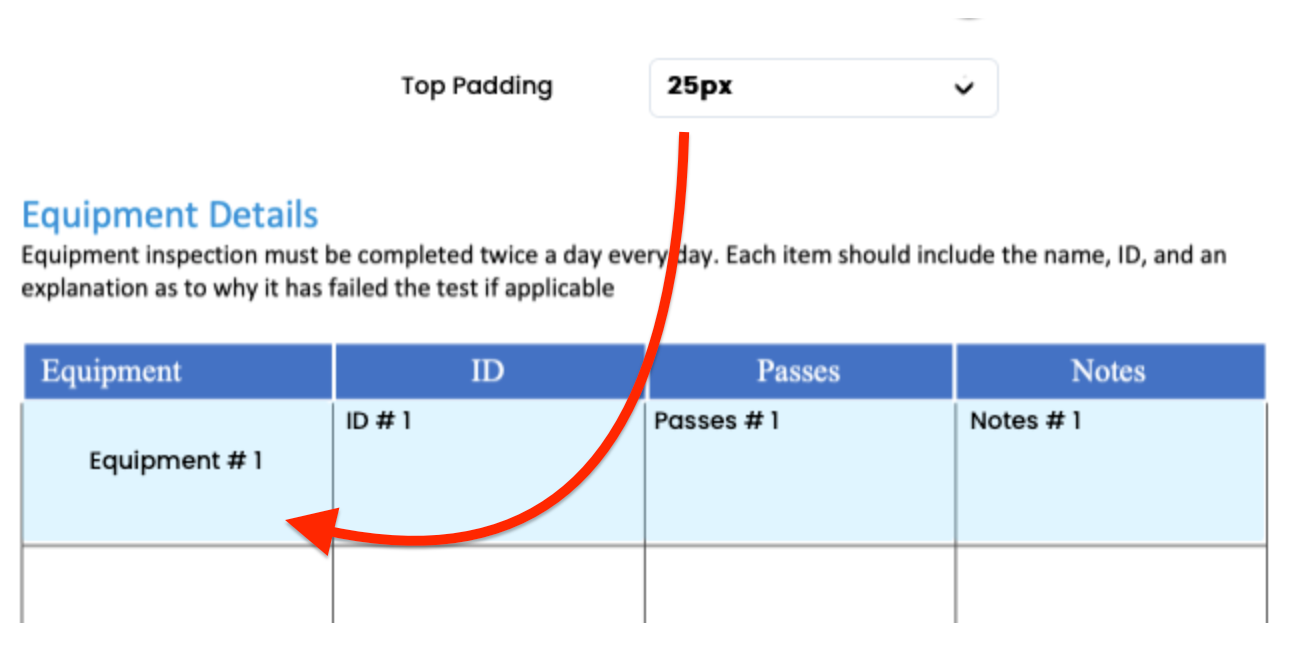
- Next, we want to adjust the top padding of the bounding box to center our field data in the bounding box.

- We'll then select Save Container Style so that we can save this style and apply it globally.
- Now, we can select our other fields and apply the Equipment Details container style.
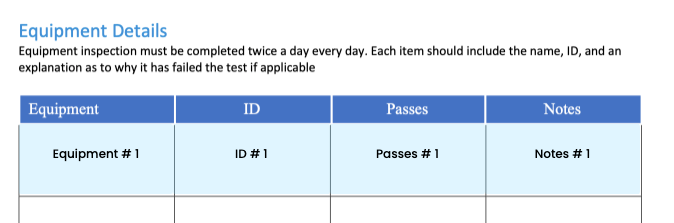
- If we make changes to any field with the Equipment Details container style, such as adjusting the style to 95px right padding, all of the fields will adjust simultaneously (as shown below).