Overview

The default style will be accessible in the Value section of the Field Formatting menu:
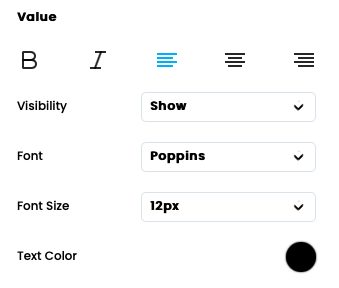
You can adjust and style the displayed field data outside of the default setting. For example, if you wanted to change the first column of data in the Equipment Details table (shown below) to display a different text, font, and color:
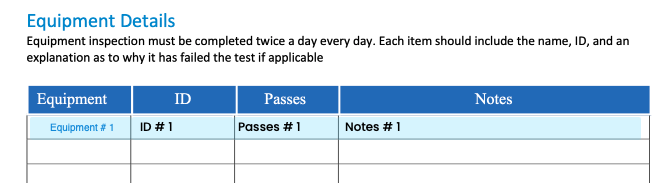
1. Adjust the style parameters of the first field cell and save it as a style.
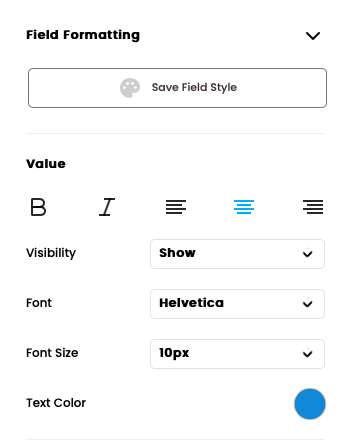
2. Click Save Field Style to name and save this field style.
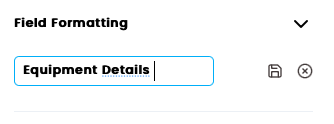
3. Now this saved field style can be applied to other fields in the table.
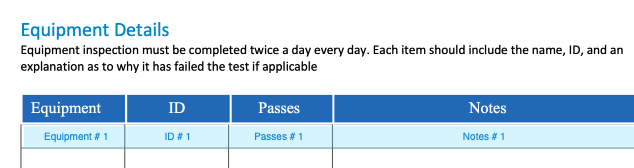
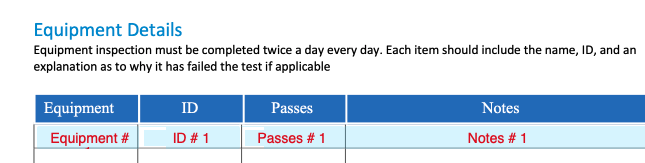
In this same example, let's look at how to make a global change to a field style that is already applied within a report. All of the fields currently have the Equipment Details field style applied. When we adjust the style to 14px and red text, all the fields with the Equipment Details field assigned will adjust as shown: