Many inspection forms and checklists require responses of Pass/Fail, Yes/No, or some type of score or flag that indicates a failed condition or issue that needs attention.
Rather than scan through an entire form for the exception conditions (a condition other than normal; in this case a response of Fail, No, etc.), you can put a summary into the form that only tracks the exception conditions. This summary can then be used in Custom Reports and is displayed in-app and on standard generated forms.
Example: If 100 Pass/Fail conditions are in an inspection form and the user only wants to review the failed items, the user can:
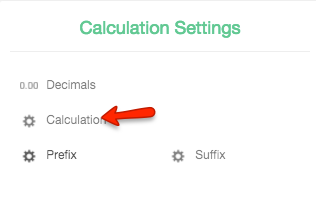
- Add a Calculation field to the form in the Form Builder.
- Make sure that the Field Keys are named for each for each Pass/Fail, Yes/No, etc. field.
- Enter the following script into the Calculated Field:
Notes: + question1 is the Field Key for the question
+ ==' Fail' evaluates an Option Field with 'Fail' as the value; it is checking for. This could be Yes or No in a Yes/No field type.
+ "Question 1 Failed" is the text that will appear in the summary field
+,\n is putting a return in the text so that the summary appears as a list rather than a sentence.
SCRIPT
var issues = '';

if ($question1$ == 'Fail') {
issues += 'Question 1 Failed,\n';
}
if ($question2$ == 'Fail') {
issues += 'Question 2 Failed,\n';
}

return issues;