Overview
A major benefit of subforms is that they can be repeated within the main form. You can ask users to input data for one item, for example, and simply have them repeat that section as many times as needed depending on how many items they have.
If you're asking users to input a value for each subform instance (e.g., quantity, price) you can have the form calculate the sum of all values across the repeated instances.
For example, let's say your main form is an order form and it has a subform that contains a drop-down product list with:
- An assigned price for each item on the list
- A field to indicate the quantity of the items that will be purchased.
Users can select an item and its quantity from the drop-down list (e.g., 2 apples). They can then repeat the subform and choose a new item/quantity (e.g., 1 banana), and repeat again as needed. With each selection, the total price (sum) would automatically calculate on the form (e.g., $4.99).
This can be set up in a few simple steps in the Form Builder.
*Note: This article assumes you have a general understanding of how to use the Calculation field and subforms. An advanced understanding of scripting field rules and skip logic is also beneficial, although the process is fairly simple after accomplishing it once.
How to Sum Values of Multiple Subform Instances
Set Up Your Subform
In the following instructions, we'll walk you through how to set up a basic calculation of quantity and price to get the sub-total. You may adjust the formula to any type of calculation to meet your needs (averages, percentages, if/then statements, variables, etc.).
1. Create or open an existing subform in the Form Builder (learn how to create a subform).
2. Add the List field to create a list (if you don't have one already).
3. Select Add List Items from the menu on the right to create your list.
4. Select Advanced and make sure your list has an assigned score for each item.
- In the example below, our subform contains a product list of fruit (apple, lemon, watermelon, orange) with scores (in the red box) associated with those selections.
5. Add a Numeric field to your subform.
-
- Our example above is labeled Quantity because we will have users enter the quantity of the product they wish to purchase.
6. Add a Calculation field to your subform.
-
-
- Our example above is labeled Sub Total because we will use it to calculate the sum of the quantity (Numeric fields).
-
7. Select Add Calculation in the Calculation Settings menu.
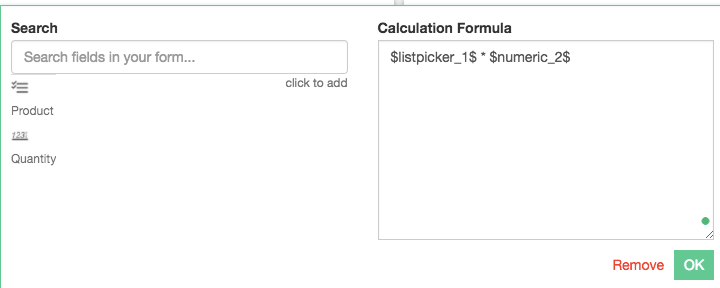
8. In the Calculation Formula box, multiply the score of your list by the Numeric field (quantity) to get the sub-total. To set up this calculation:
-
- Select the fields you wish to calculate from the list of fields on the left side of the window. This will automatically add them to the formula box.
- Put a * symbol between the two field keys to multiply them.
- Put a # symbol in front of the list field key (ours is $listpicker_1$). This lets the code know to calculate the score of the list selections instead of the value.
9. Save and publish your subform.
-
-
- We recommend testing your subform on your device to make sure that the calculation displays and computes how you want it.
-
Set Up Your Main Form
1. Open your main form in the Form Builder and add a Sub-Form field.
2. Select your subform from the drop-down list on the right and select Allow Multiple Sub-Form Instances.
3. Add a Calculation field to your main form.
- This calculation field will contain a formula that pulls the values across multiple instances of your subform and total them.
4. Select Add Calculation under the Calculation Settings menu on the right.
5. In the Calculation Formula box, enter this formula: sumSubform($subform$, 'fieldkey')
6. Replace $subform$ with your subform's field key (our is subform_3).
- Make sure to keep the $ signs on the outside of your field key.
7. Replace 'fieldkey' with the field that you want to add/sum across your subform instances (ours is 'computedlabel_3').
- It is important to use single quotes (') for this part instead of using $ signs.
8. Save and publish your form.