Overview
FastField's Advanced Rules feature allows you to apply conditional logic using if/then statements (e.g., If a user selects "No," then a new field will appear that asks for additional information).
Advanced Rules are useful when you have complex business logic or conditions involving multiple fields. For example, Advanced Rules could be applied to an inspection form that displays specific fields based on the number of rooms being inspected. It could also assign alert colors to those fields based on input.
How to Set Up Advanced Rules
- Log into the Portal and open your form in the Form Builder.
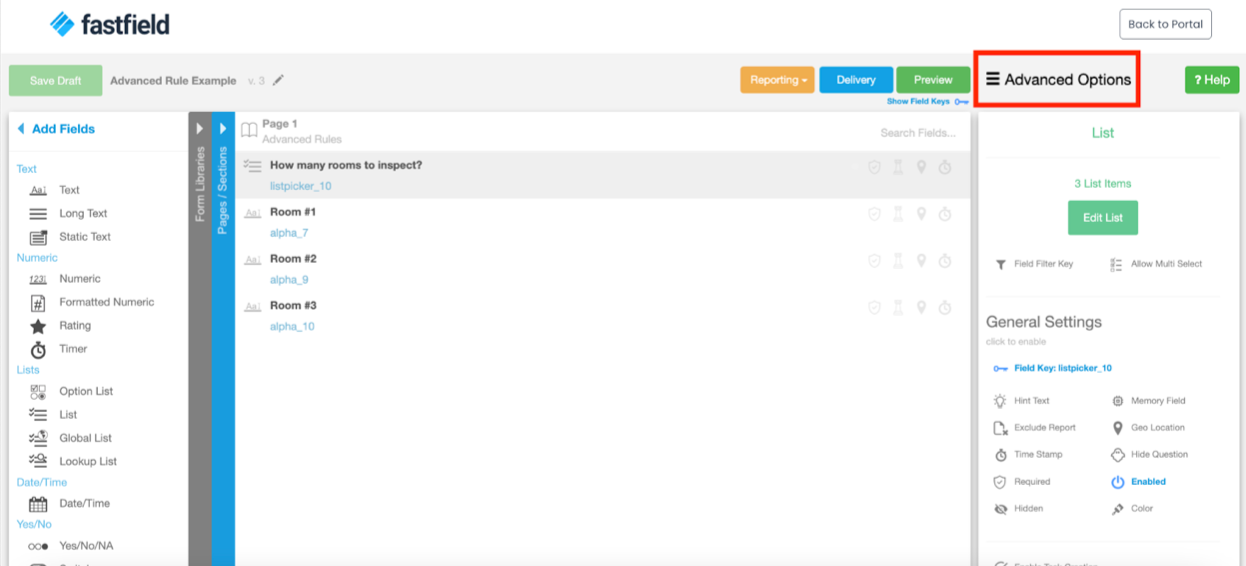
- Select Advanced Options > Advanced Rules.
- In the Form Rules window, select + Add Rule to create a new rule.
- Select the Fields, Rules and Variables... drop-down list to choose the field you want to apply this rule to.
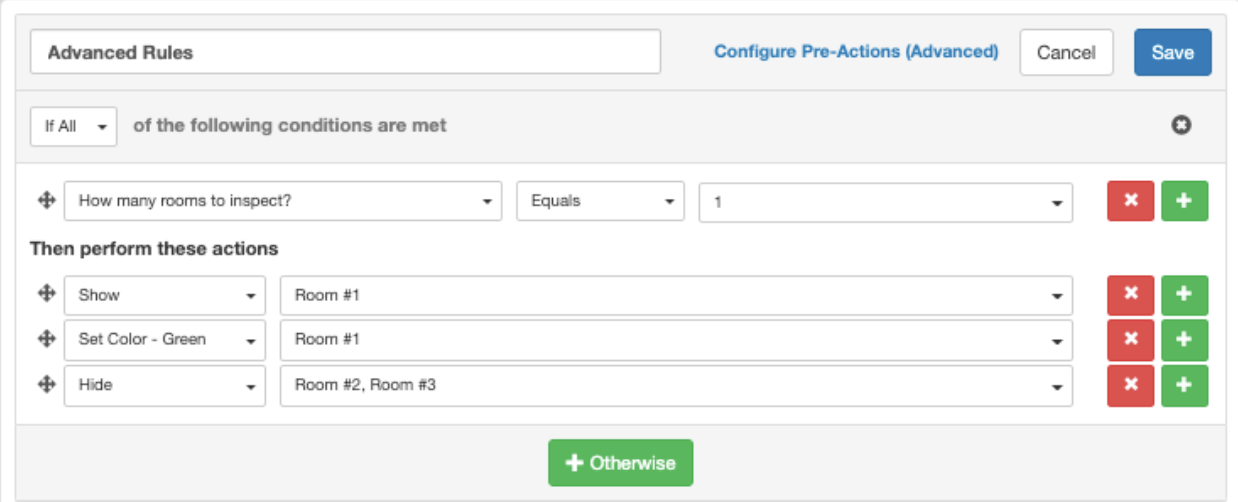
- In our example below, we've applied it to our How many rooms to inspect? field.
- Choose the evaluation type (e.g., Equals, Not Equals, Has Value).
- Specify the value you want to compare the field with (e.g., 1).
- Under Then perform these actions, define the actions to be performed if the conditions are met.
- In our example below, if the value I is selected for How many rooms to inspect?, we will show the Room #1text field and set its color to green. We will also hide the Room #2 and Room #3 text fields.
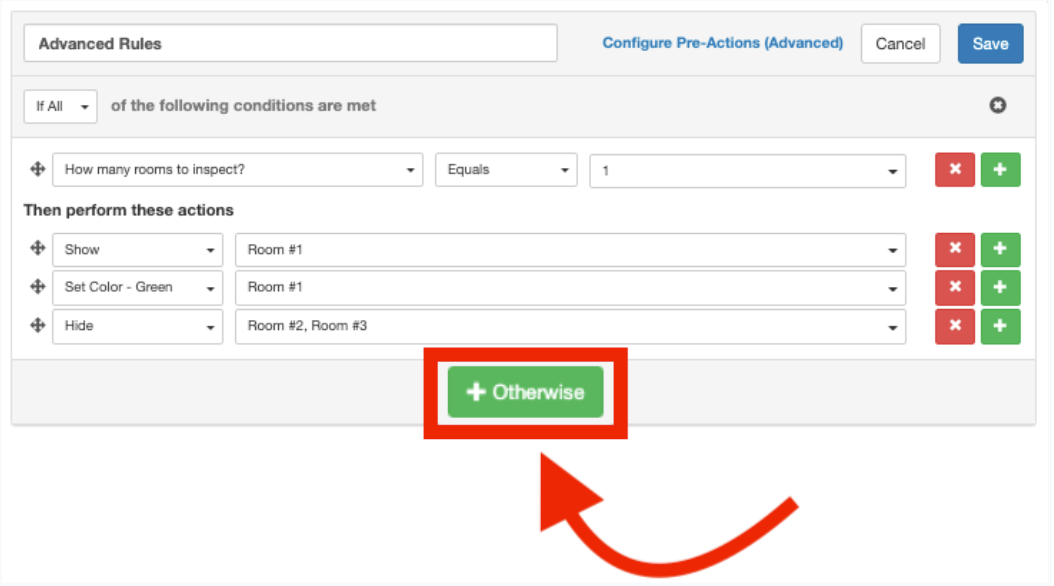
- Optional: Select + Otherwise to add additional conditions (read the Adding Additional Conditions section below to learn more).
Adding Additional Conditions
In a similar way, you can add more conditions using the + Otherwise button. Using our example above, for instance, we can create another condition for when users enter 2 instead of 1 when asked How many rooms to inspect? You can add as many conditions as you need.
- Select + Otherwise to create a new action.
- To create a multi-condition rule, select Else If All from the Else drop-down list.
- Select + Add Condition.
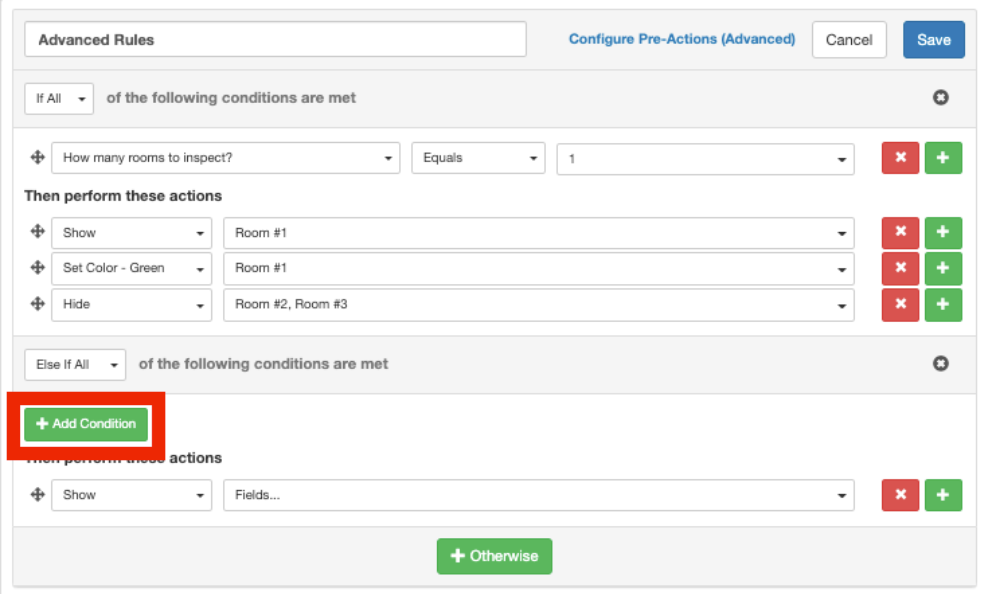
- Set up the new condition.
- In our example, our new condition is when users enter 2 for the field How many rooms to inspect?
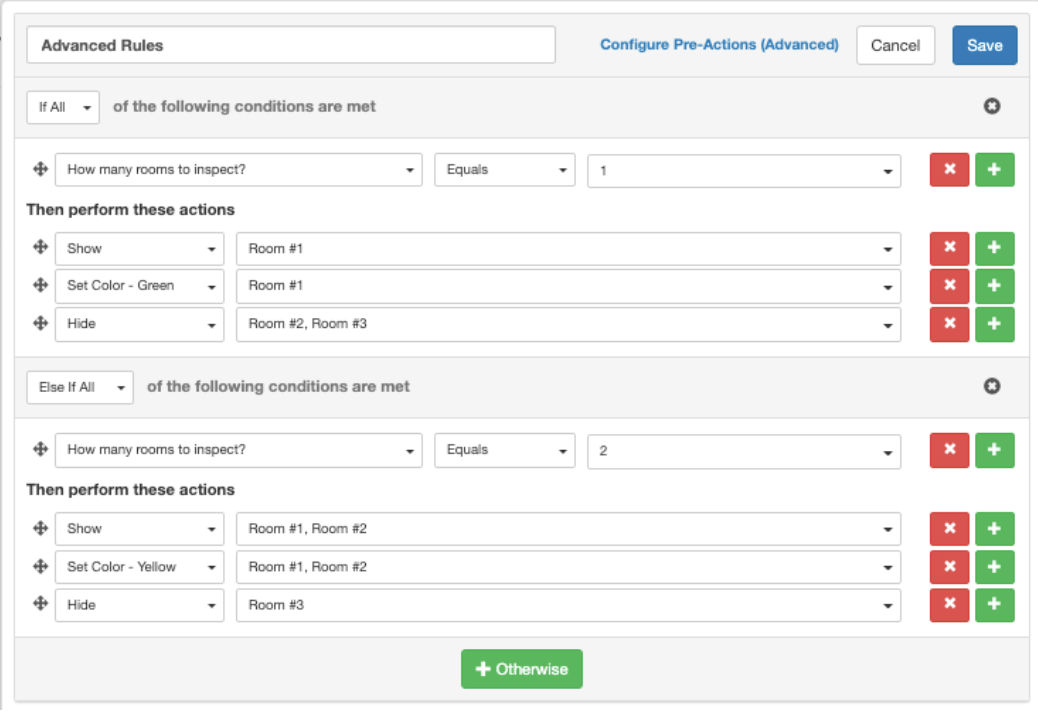
- Define the corresponding actions for when the condition is met.
- In our example, if the user enters 2 for How many rooms to inspect? it will show the Room #1 and Room #2text fields, set their color to yellow, and hide the Room #3 text field.
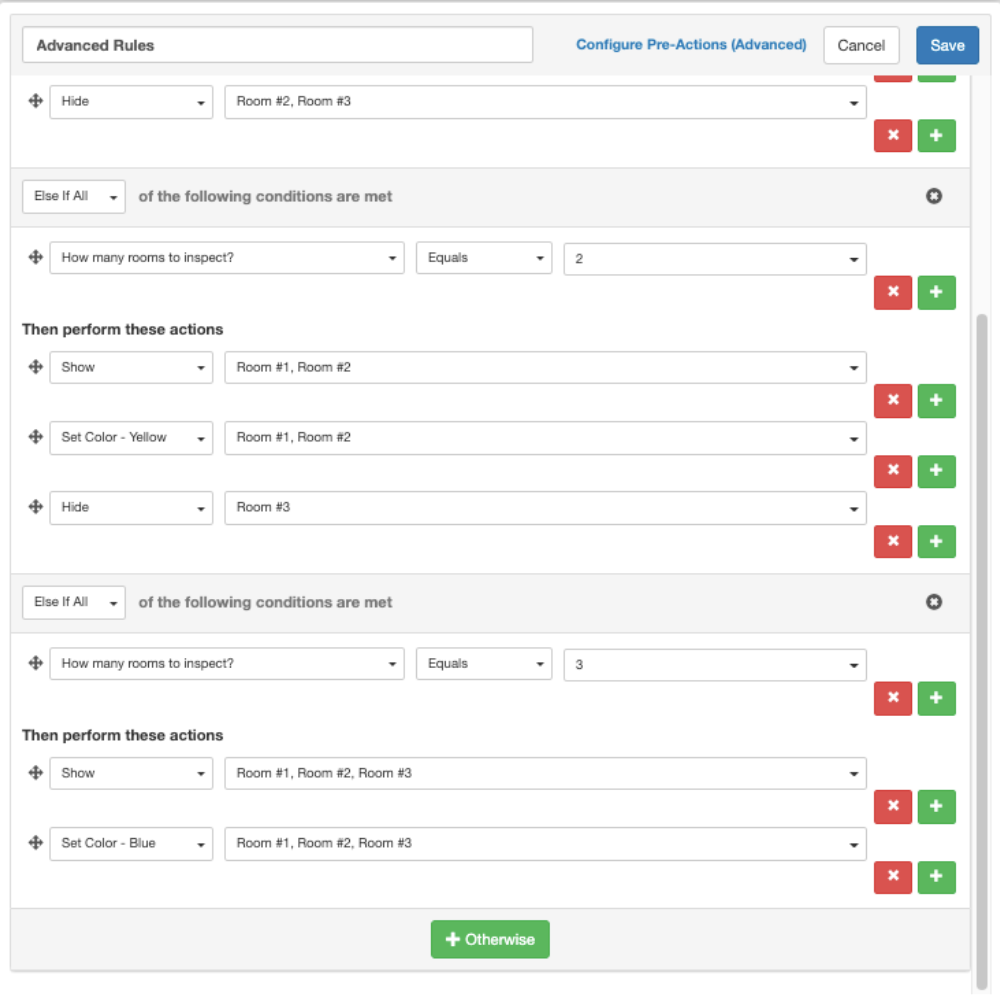
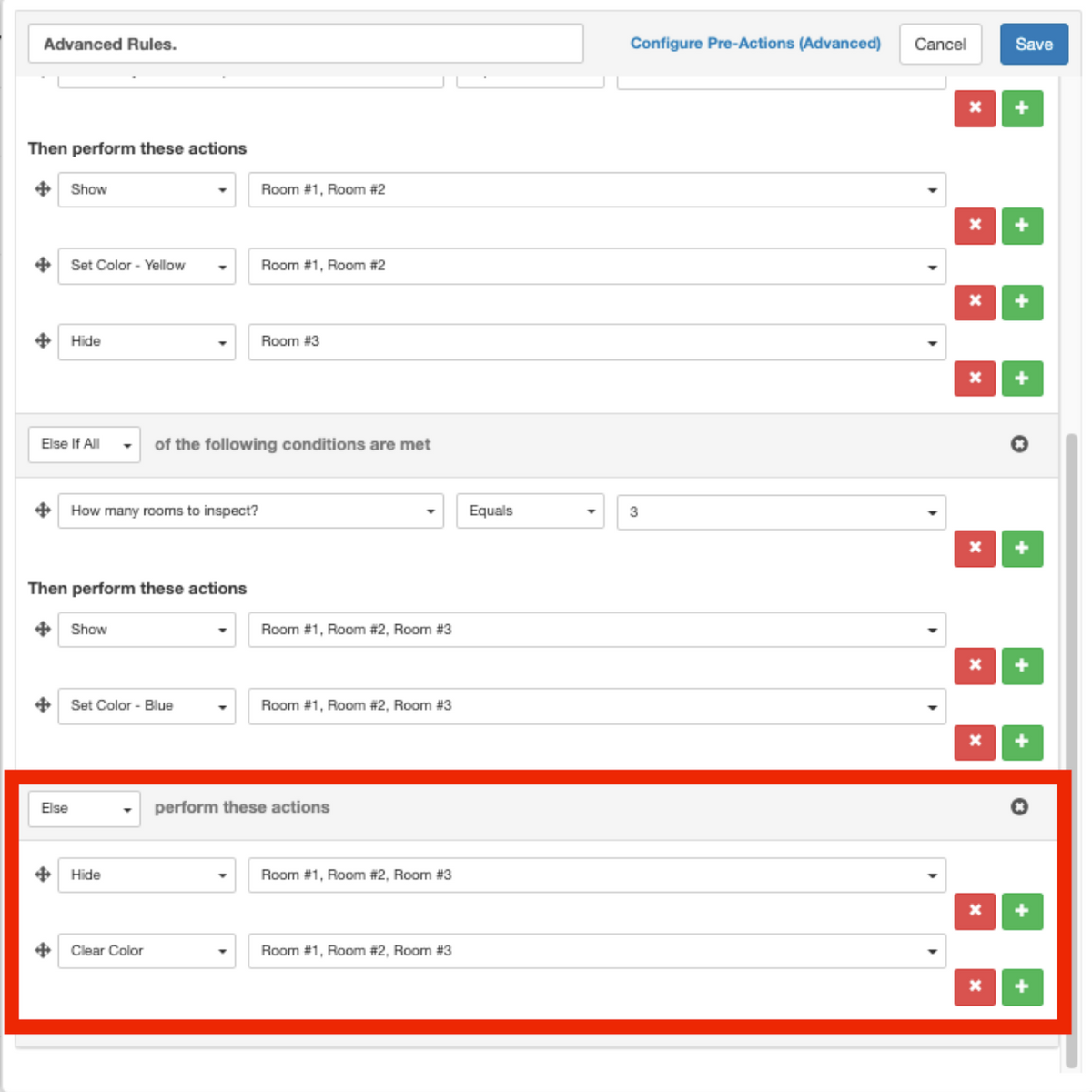
You can then repeat these steps to set up as many conditions as needed. To handle cases where no selection is made, use the Else condition.
- In our example below, we use the Else condition to hide and clear colors for Rooms #1, #2, and #3.